 Baadal™
myBaadal · Downloads
Get myBaadal on every screen in your office.
One free app for phones, tablets, computers and the browser. Same folders, same permissions, the same file everywhere.
- Free for your whole team
- No per-user charge
- Files stay on your Baadal
Get the app
Get myBaadal for your device.
Set up a new Baadal, back up your photos, scan paper to PDF and add your team, all from your phone.
- Set up a new Baadal
- Auto photo backup
- Scan to PDF
- Offline files
- Manage users
Android 9 or later, phones and tablets
Set up a new Baadal, back up photos, scan to searchable PDF and open your Baadal right inside the Files app.
- Set up a new Baadal
- Files app
- Scan to PDF
- Face ID lock
- Auto photo backup
iOS and iPadOS 17 or later
Your Baadal as a folder in Finder: two-way sync, files that download only when you open them, and Baadal Connect when you’re away from the office.
- Two-way sync
- Files on demand
- Finder menu
- Baadal Connect
macOS 13 or later, Apple silicon (M1 or later)
Your Baadal as a folder in File Explorer: two-way sync, files on demand, a right-click share menu and Baadal Connect.
- Two-way sync
- Files on demand
- Explorer menu
- Baadal Connect
Windows 10 or later, on an Intel or AMD (x64) PC
Every Baadal has its own web address. Sign in from any browser to open and share files, write documents and, as an admin, manage people and groups.
- Office documents
- Version history
- Group sharing
- Deleted files
English letters only, at least four: the name chosen at setup.
Setting up a new Baadal? Setup happens on a phone: get myBaadal for Android or iPhone.
There’s no Linux app yet. myBaadal on the web works from any browser.

You’re in the right place. Install myBaadal on your phone first: that’s where setup happens. See the five steps
Every platform
All downloads, in one list.
Install myBaadal on as many devices as your team uses. Each person signs in with their own login.
- Android Phones and tablets
Android 9 or later
Get it on Google Play - iPhone, iPad One app for both
iOS and iPadOS 17 or later
App Store - Mac Apple silicon (M1 or later)
macOS 13 or later
Mac App Store - Windows Desktops and laptops
Windows 10 or later, on an Intel or AMD (x64) PC
Microsoft Store - Browser Any computer, nothing to install
Any modern browser, at yourname.baadal.co
Find your address - Linux No app yet
Use myBaadal on the web from any browser
Not available
What each app can do: see the myBaadal apps
New Baadal? Start here
Five steps, and all of them happen on your phone.
Setup happens in the myBaadal app. Keep your phone near the Baadal, with Bluetooth and Wi‑Fi turned on.
Plug in your Baadal
Connect the Baadal Device to power with the adapter and cord from the box. It starts up on its own.
Install myBaadal on your phone
Scan the QR code on the quick-start card, or get it from Google Play or the App Store.
Tap “Set Up New Device”
Allow Bluetooth when the app asks. It finds your Baadal nearby and pairs with it.
Get it online
Connect the Baadal with the network cable from the box (recommended) or pick your office Wi‑Fi.
Your phone and the Baadal need to be on the same network during setup.
“Successfully Connected!” Your Baadal is online.
Name it and create the admin login
Pick a name, English letters only and at least four. It becomes your Baadal’s address: yourname.baadal.co. Then enter the owner’s name, username, email and password.
You’re signed in as the admin.

In the box
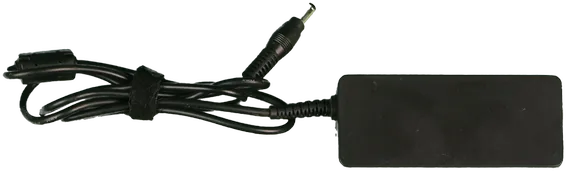
Power adapter 
Power cord 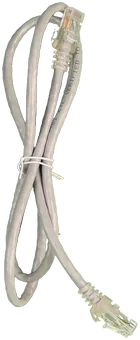
Network cable Quick-start card
Device setup and user management are available in eight Indian languages.
- हिन्दी
- ગુજરાતી
- मराठी
- தமிழ்
- తెలుగు
- ಕನ್ನಡ
- മലയാളം
- বাংলা
Joining your team’s Baadal
Already set up? Just type its name.
No server address to remember. Sign in with the login your admin made for you.
On a phone
Open myBaadal, tap the button below, type your Baadal’s name and sign in.
Connect Existing DeviceOn Windows or Mac
Install myBaadal, choose the option below and type its name. Your files show up in a myBaadal folder in File Explorer or Finder.
Connect to Baadal DeviceIn any browser
Go to your Baadal’s own web address and sign in. Nothing to install.
yourname.baadal.co
No login yet? Ask whoever set up your Baadal. Admins add people from the web or the phone app.
Baadal Connect · Windows and Mac
A private, encrypted link from your computer to your Baadal.
When you sign in on a Windows PC or a Mac, Baadal Connect sets it up for you. Your files travel over it instead of through the Baadal’s public address. There’s nothing to configure.
- Set up for you when you sign in
- Encrypted from your computer to the Baadal
- Works from home, a client’s office or a hotel
Needs your Baadal on current Baadal software. If the link can’t be set up, myBaadal carries on over the Baadal’s normal address. On a Mac, macOS asks once for permission to add the connection. Coming to the Android and iPhone apps.
Do the apps cost extra?
No. myBaadal is free to download for everyone on your team, and Baadal doesn’t charge per user.
Is there a Linux app?
Not at the moment. On Linux, use myBaadal on the web from any browser.
Will it work on an Intel Mac?
The Mac app needs Apple silicon (M1 or later) and macOS 13 or later. On an Intel Mac, use myBaadal on the web.
Why do the Mac and iPhone links go to the same page?
myBaadal has one App Store listing for iPhone, iPad and Mac. Open the link on your Mac to get the Mac app.
Where are my files kept?
On the Baadal in your office, and in any backup destination you choose. From outside, the apps connect over HTTPS through Baadal’s relay. On Windows and Mac, Baadal Connect adds a private link that’s encrypted all the way from the computer to the Baadal.
Can everyone on my team see everything?
No. Each person signs in with their own account and sees only their own files and what’s been shared with them, in every app. Admins create accounts and set storage limits from the web or the phone apps.
Can I use more than one Baadal?
Yes. Head office and branch, or two businesses: add each Baadal in the app and switch between them.
Stuck on a step?
Talk to the people who build Baadal. Send a WhatsApp, call, write to support, or visit our offices.
New to Baadal? Book a 20-minute demo and we’ll set one up with folders for your kind of work. Call +91 78620 22715